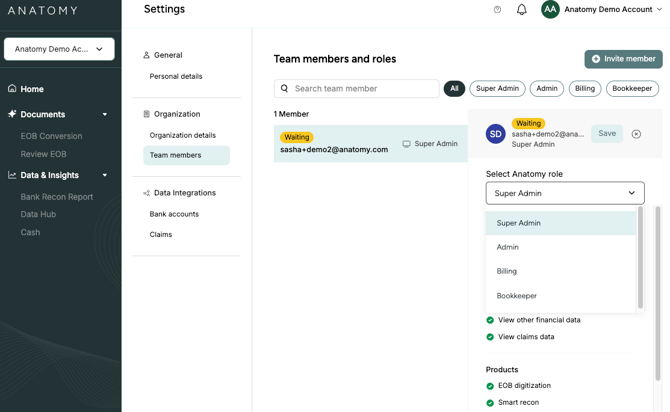
Team members in Anatomy can have four different role types: (1) Super Admin (2) Admin (3) Billing and (4) Bookkeeper. Each of these roles within Anatomy have different levels of access to product features and certain data that you may wish to limit, based on the individuals job function.
Note that only Super Admins and Admins have the ability to change role types within Anatomy.
If you would like to change a user's role type, you will follow similar steps to when you first invite team members.
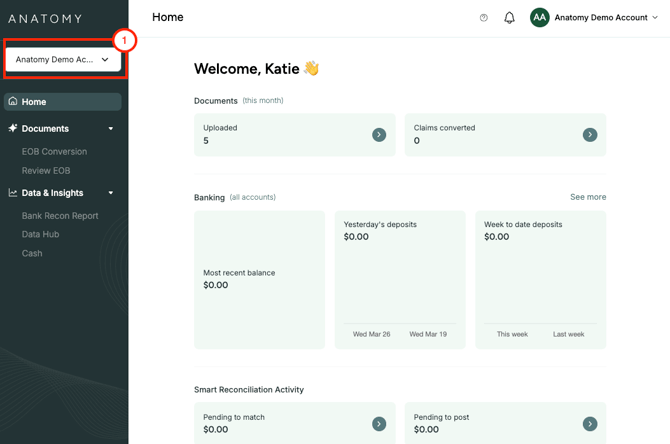
1. Make sure you are in the correct practice, if you have multiple practices.
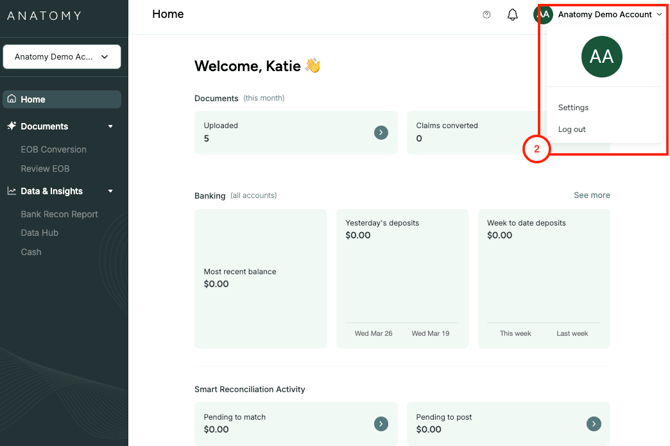
2. Navigate to "Settings" under the account menu on the top right hand menu.
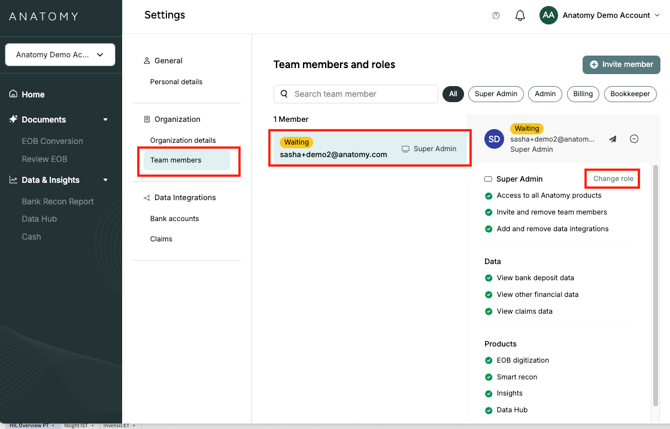
3. Select "Team Members" under "Organizations". Select the name of the user that you want to change the role for. When that user is highlighted, you can select "Change Role" in right hand menu.
4. Once you hit "Change Role", a drop down menu will appear and you can select the appropriate role. You can verify the access levels by reviewing the permitted and prohibited actions in the list below. Be sure to then save your changes before exiting.