
If you would like to add new users to your Anatomy account, you should first log into your Anatomy account.
Please note that you are only able to invite new users if you are currently an admin or super admin user. If you are unsure of your role, you should contact the primary owner of the account, or you can email support@anatomy.com to understand your current permission level.
Once you are logged into your account, you will be on the homepage.
ADDING A NEW USER
Follow the remaining steps to add a new user:
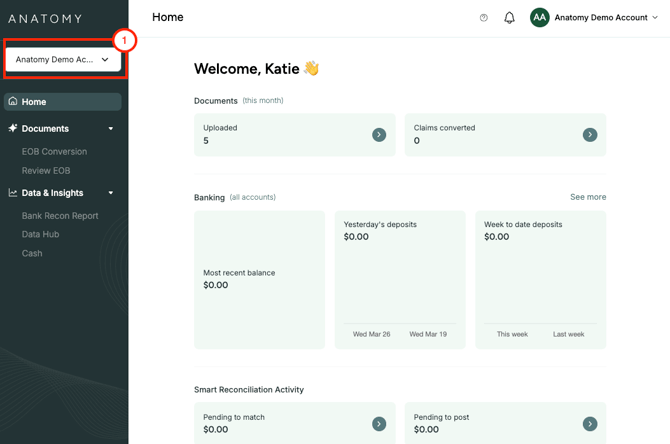
1. If you have multiple practices with Anatomy, make sure to select the appropriate practice via the drop down menu in the top left hand corner of the menu.
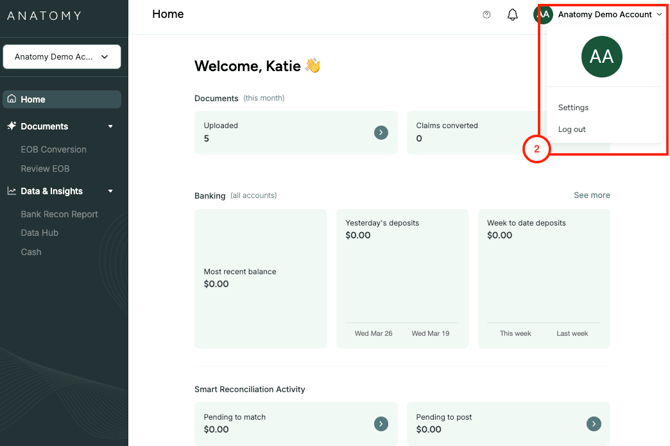
2. Select the drop down at the top right hand corner of the screen and select "Settings"
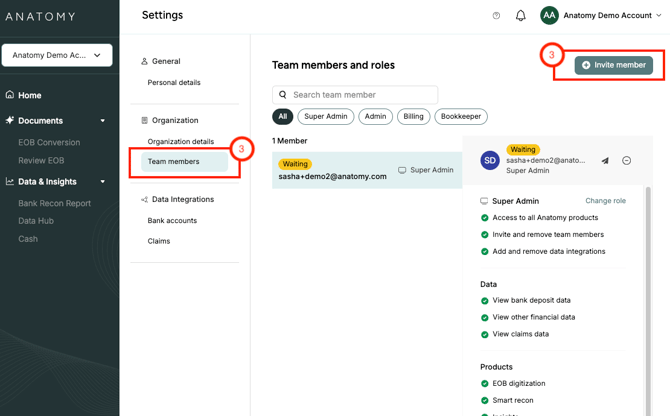
3. On the new page, select "Team Members" under Organization. You'll see existing team members listed, and you have the option to search for individual members. If you want to add a new team member, you can select the green button on the top right that say "Invite Member".
4. This will prompt you to enter your team member's email address, and will send them an email invitation that they will need to click on and accept. You can assign an Anatomy role to the user based on the permission level you want the person to have. You can also change the role type at any time.
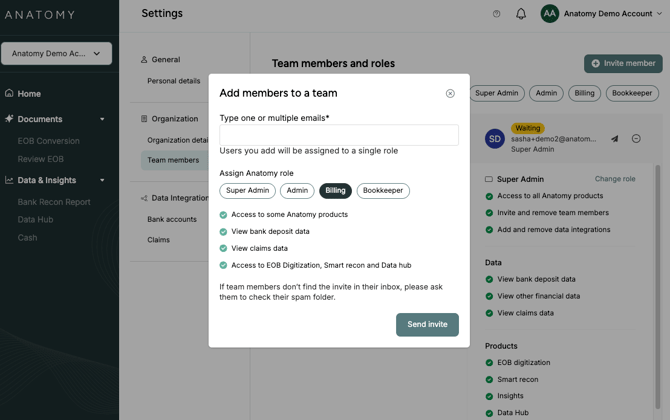
User permissions can be seen by clicking on the various buttons on the main team member page, and reading the allowed and prohibited tasks and data for each role type.