
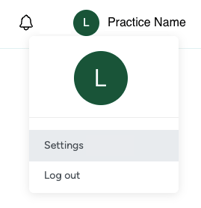
1. In the top right corner of the Anatomy platform, click on your practice name and then click Settings.
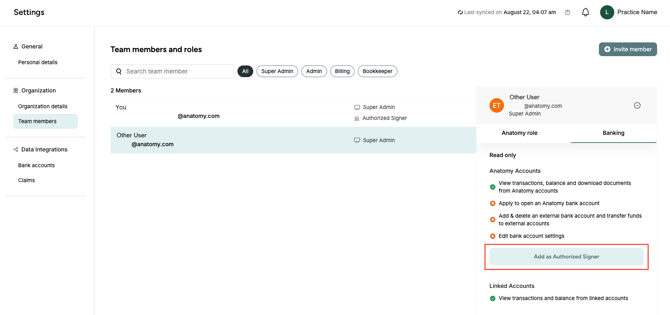
2. On the left side menu, click Team members and then click on the user you want to invite to become an additional authorized signer for this practice. Click on the Banking tab on the right, then click Add as Authorized Signer." Note that the user must be a Super Admin or Admin.
If you do not see the user's name, you will need to invite them to the Anatomy platform first by clicking the "Invite member" button on the right side. You can read here for more detailed instructions.
3. The user will receive an email inviting them to complete the application and they will also be able to access it from their Anatomy home page. If you would like to invite a user to become an authorized signer for multiple businesses, you can repeat these steps for each one. However, please note that the user must complete and be approved for one application before they can start another.